Translation
Manage the translation glossary
|
|
The translation glossary enables item bank managers to define custom term or phrase mappings between source and target languages. When items are translated, ExamDeveloper references the glossary to ensure the specified terms are translated consistently and accurately. Translation glossaries are often used to manage technical, proprietary, or domain-specific terminology within translated item content.
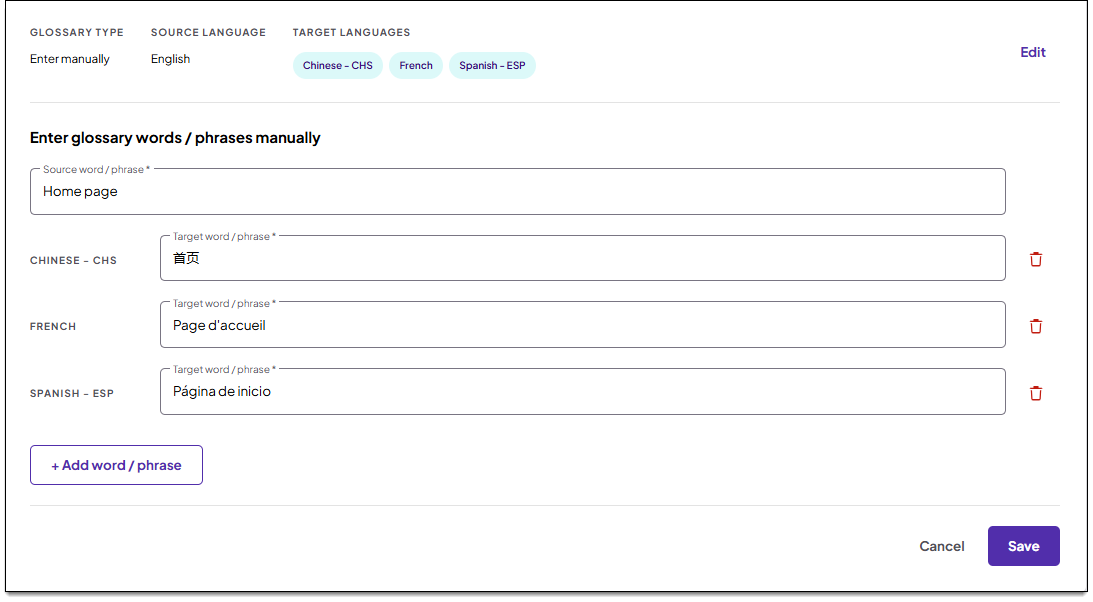
Add glossary terms
|
|
- On the Item bank configurations page, click the Language configuration tab.
- In the Glossary section, click Add to glossary.
- In the Add to glossary side panel, select the following:
- Source language: Select the source language for the glossary terms you want to add. (This is the original language of items to be translated that contain the glossary terms .) The default language for the item bank is automatically selected, but you can change it.
- Target language(s): Select one or more target languages. Each target language you select can have its own unique term mapped to the source term.
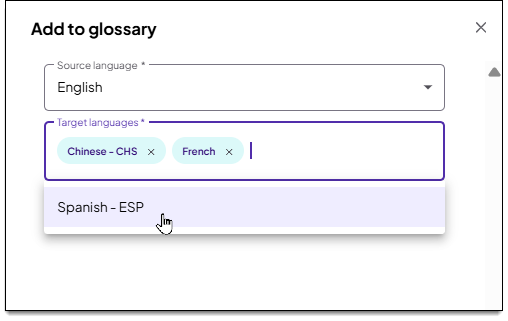
- Click Next.
- The manual glossary entry page is displayed. In the Source word/phrase field, type the source term or phrase exactly as it will appear in items that will be translated.
 The maximum number of characters allowed is 255.
- The source text is case-sensitive. (If a term in a source item exactly matches a glossary term, the glossary translation will be used instead of the standard translation of the term.)
- In each target language field, type the translated term or phrase in the target language (or in the source language if desired when used for proprietary terms, etc.). Make sure to type the word or phrase exactly as it should be once translated.
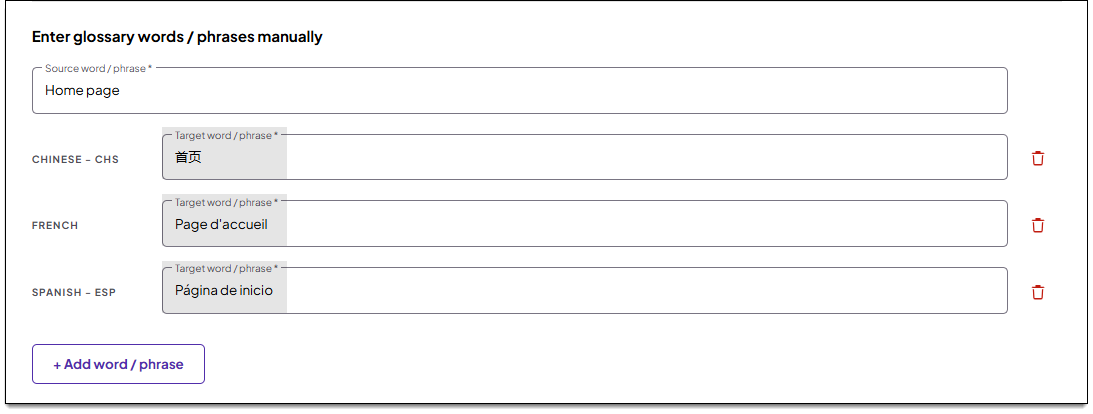
- The maximum number of characters allowed is 255.
- The source text is case-sensitive. (If a term in a source item exactly matches a glossary term, the glossary translation will be used instead of the standard translation of the term.)
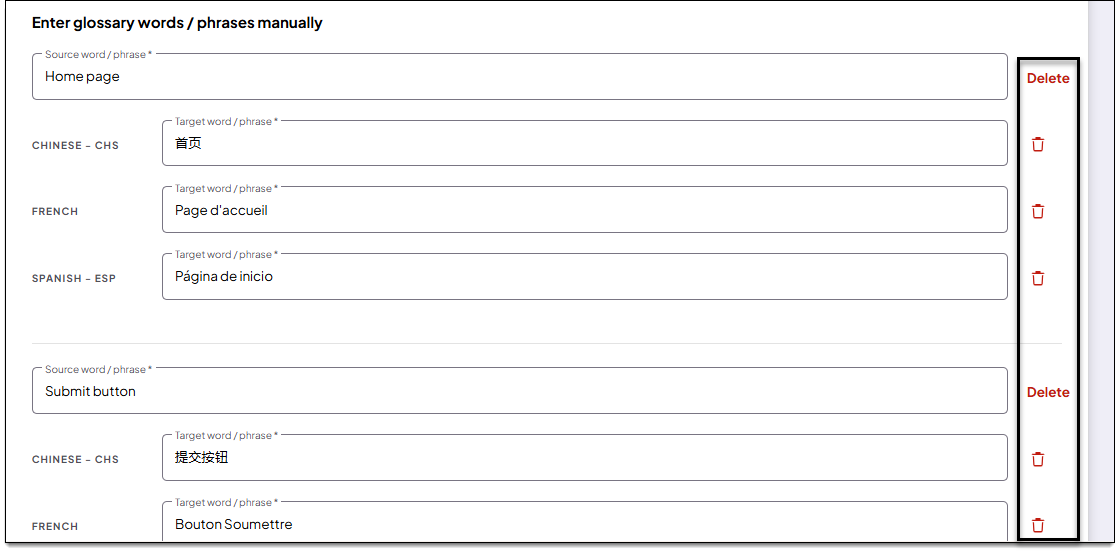
- To add additional terms, click Add word/phrase and repeat steps 5-6 above. You can add as many terms as needed; however, only 5 items can be added at a time.
- If needed you can delete an entire word/phrase, or delete one or more of its translations:
- To delete a word/phrase, click Delete next to the Source word/phrase field. The source and any of its translations will be removed.
- To delete a specific translation of a word or phrase, click
 for the desired translation. (You are not required to provide a target word/phrase for every available language.)
- Click Save to add the currently displayed terms to the glossary.
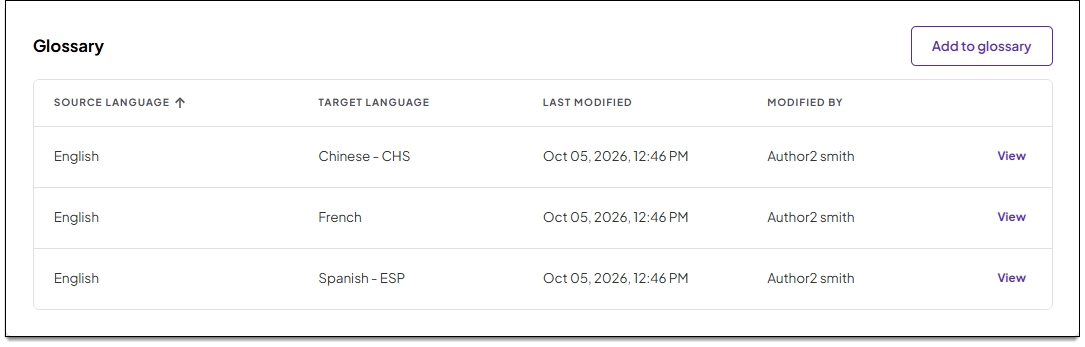
- Each translated term is added to the corresponding list in the glossary. (Glossary terms are sorted into lists based on a single combination of source and target language. For example, English to Spanish words are added to one list, while English to Chinese words are added to a separate list.)
Edit glossary terms
- In the Glossary section of the Language configuration tab, click View for the desired glossary list.
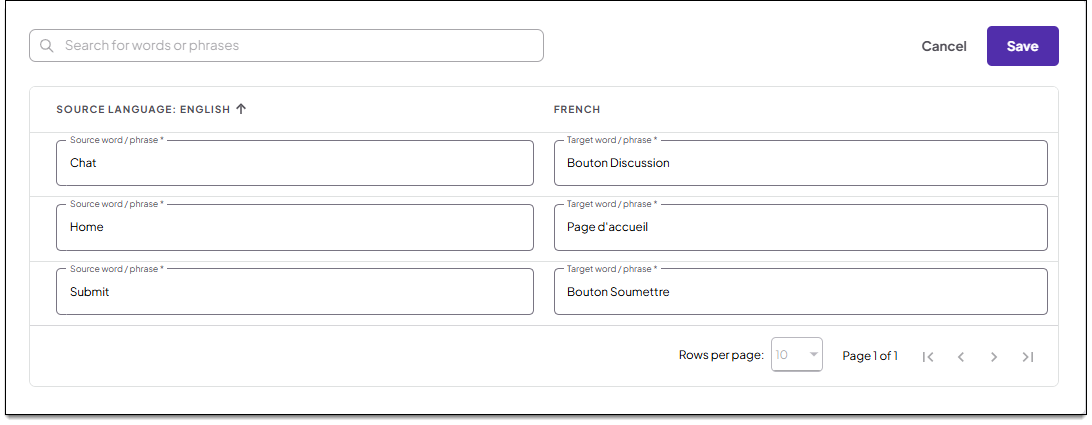
- Click Edit glossary.
- Update the Source word/phrase and Target word/phrase fields as needed. Use the search bar to find a word or phrase if needed.
- Click Save.
Delete glossary terms
- In the Glossary section of the Language configuration tab, click View for the desired glossary list.
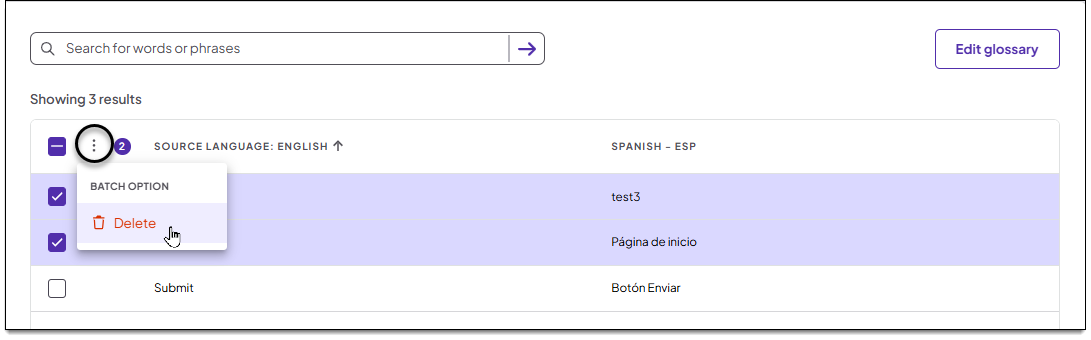
- Select the checkboxes for the terms to delete.
- Click
 in the toolbar and select Delete.
- Click Yes in the confirmation modal.
- If you delete all terms from a single glossary list (such as all terms translated from English to French), the list will no longer be displayed on the Glossary page.
Pearson Proprietary and Confidential